# xiaohongshu-mcp
[](#contributors-)
[](./DONATIONS.md)
[](./DONATIONS.md)
[](https://hub.docker.com/r/xpzouying/xiaohongshu-mcp)
MCP for RedNote (Xiaohongshu) platform.
- My blog article: [haha.ai/xiaohongshu-mcp](https://www.haha.ai/xiaohongshu-mcp)
**If you encounter any issues, be sure to check [Common Issues and Solutions](https://github.com/xpzouying/xiaohongshu-mcp/issues/56) first.**
After checking the **Common Issues** list, if you still can't resolve your deployment problems, we strongly recommend using another tool I've created: [xpzouying/x-mcp](https://github.com/xpzouying/x-mcp). This tool doesn't require deployment - you only need a browser extension to drive your MCP, making it more user-friendly for non-technical users.
## Star History
[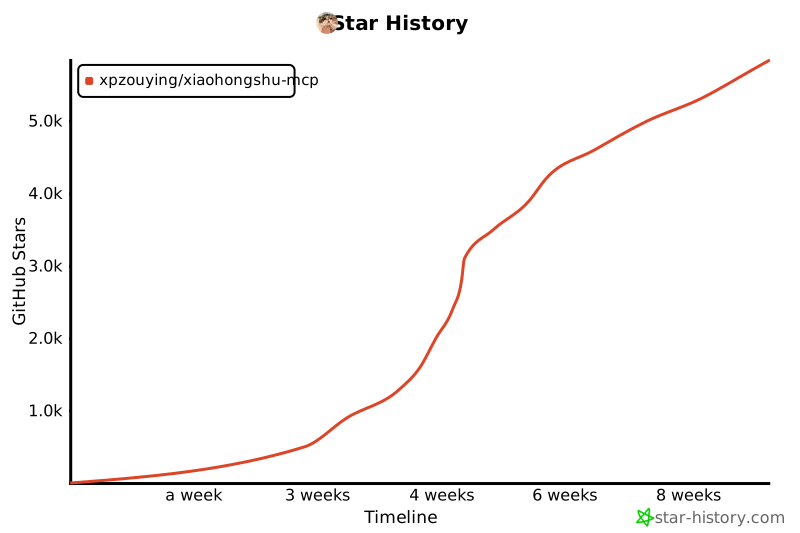](https://www.star-history.com/#xpzouying/xiaohongshu-mcp&Timeline)
## Appreciation and Support
All donations received for this project will be used for charitable giving. For all charitable donation records, please refer to [DONATIONS.md](./DONATIONS.md).
**When donating, please note "MCP" and your name.**
If you need to correct/withdraw your name attribution, please open an Issue or contact via email.
**Alipay (QR code not displayed):**
Donate via Alipay to **xpzouying@gmail.com**.
**WeChat:**
 ## Project Overview
**Main Features**
> 💡 **Tip:** Click on the feature titles below to expand and view video demonstrations
## Project Overview
**Main Features**
> 💡 **Tip:** Click on the feature titles below to expand and view video demonstrations
1. Login and Check Login Status
The first step is required - RedNote needs to be logged in. You can check current login status.
**Login Demo:**
https://github.com/user-attachments/assets/8b05eb42-d437-41b7-9235-e2143f19e8b7
**Check Login Status Demo:**
https://github.com/user-attachments/assets/bd9a9a4a-58cb-4421-b8f3-015f703ce1f9
2. Publish Image and Text Content
Supports publishing image and text content to RedNote, including title, content description, and images.
**Image Support Methods:**
Supports two image input methods:
1. **HTTP/HTTPS Image Links**
```
["https://example.com/image1.jpg", "https://example.com/image2.png"]
```
2. **Local Image Absolute Paths** (Recommended)
```
["/Users/username/Pictures/image1.jpg", "/home/user/images/image2.png"]
```
**Why Local Paths are Recommended:**
- ✅ Better stability, not dependent on network
- ✅ Faster upload speed
- ✅ Avoid image link expiration issues
- ✅ Support more image formats
**Publish Image-Text Post Demo:**
https://github.com/user-attachments/assets/8aee0814-eb96-40af-b871-e66e6bbb6b06
3. Publish Video Content
Supports publishing video content to RedNote, including title, content description, and local video files.
**Video Support Methods:**
Only supports local video file absolute paths:
```
"/Users/username/Videos/video.mp4"
```
**Features:**
- ✅ Supports local video file upload
- ✅ Automatic video format processing
- ✅ Supports title, content description, and tags
- ✅ Automatically publishes after video processing is complete
**Important Notes:**
- Only supports local video files, not HTTP links
- Video processing takes longer, please be patient
- Recommended video file size should not exceed 1GB
4. Search Content
Search RedNote content by keywords.
**Search Posts Demo:**
https://github.com/user-attachments/assets/03c5077d-6160-4b18-b629-2e40933a1fd3
5. Get Recommendation List
Get RedNote homepage recommendation content list.
**Get Recommendation List Demo:**
https://github.com/user-attachments/assets/110fc15d-46f2-4cca-bdad-9de5b5b8cc28
6. Get Post Details (Including Interaction Data and Comments)
Get complete details of RedNote posts, including:
- Post content (title, description, images, etc.)
- User information
- Interaction data (likes, favorites, shares, comment count)
- Comment list and sub-comments
**⚠️ Important Note:**
- Both post ID and xsec_token are required (both parameters are essential)
- These two parameters can be obtained from Feed list or search results
- Must login first to use this feature
**Get Post Details Demo:**
https://github.com/user-attachments/assets/76a26130-a216-4371-a6b3-937b8fda092a
7. Post Comments to Posts
Supports automatically posting comments to RedNote posts.
**Feature Description:**
- Automatically locate comment input box
- Input comment content and publish
- Supports HTTP API and MCP tool calls
**⚠️ Important Note:**
- Must login first to use this feature
- Need to provide post ID, xsec_token, and comment content
- These parameters can be obtained from Feed list or search results
**Post Comment Demo:**
https://github.com/user-attachments/assets/cc385b6c-422c-489b-a5fc-63e92c695b80
8. Get User Profile
Get RedNote user's personal profile information, including basic user information and note content.
**Feature Description:**
- Get user basic information (nickname, bio, avatar, etc.)
- Get follower count, following count, likes count statistics
- Get user's published note content list
- Supports HTTP API and MCP tool calls
**⚠️ Important Note:**
- Must login first to use this feature
- Need to provide user ID and xsec_token
- These parameters can be obtained from Feed list or search results
**Returned Information Includes:**
- User basic info: nickname, bio, avatar, verification status
- Statistics: following count, follower count, likes count, note count
- Note list: all public notes published by the user
**RedNote Basic Operation Knowledge**
- **Title: (Very Important) RedNote requires titles to not exceed 20 characters**
- **Content: (Very Important) Content cannot exceed 1000 characters**
- Currently supports both image-text and video posting: From a recommendation perspective, image-text posts get better traffic than video or pure text.
- (Low priority) Pure text support can be considered. 1. I personally feel pure text would greatly increase operation complexity; 2. Pure text has low value in my use scenarios.
- Tags: Now supported. Adding appropriate tags can bring more traffic.
- According to my practical experience, RedNote should allow **50 posts** per day.
- **(Very Important) RedNote does not allow the same account to login on multiple web platforms**. If you login to the current xiaohongshu-mcp, don't login to that account on other web platforms, otherwise it will "kick out" the current MCP account login. You can use the mobile app to check current account information.
**Risk Explanation**
1. This project is open-sourced based on another project of mine. The original project has been running stably for over a year without any account bans, only occasional cookie expiration requiring re-login.
2. I used Claude Code CLI integration and verified stable automated operation for several weeks before open-sourcing.
This project is for learning purposes only. All illegal activities are prohibited.
**Practical Results**
First day likes/favorites reached 999+,

 Results after about a week
 ## 1. Usage Tutorial
### 1.1. Quick Start (Recommended)
**Method 1: Download Pre-compiled Binaries**
Download pre-compiled binaries for your platform directly from [GitHub Releases](https://github.com/xpzouying/xiaohongshu-mcp/releases):
**Main Program (MCP Service):**
- **macOS Apple Silicon**: `xiaohongshu-mcp-darwin-arm64`
- **macOS Intel**: `xiaohongshu-mcp-darwin-amd64`
- **Windows x64**: `xiaohongshu-mcp-windows-amd64.exe`
- **Linux x64**: `xiaohongshu-mcp-linux-amd64`
**Login Tool:**
- **macOS Apple Silicon**: `xiaohongshu-login-darwin-arm64`
- **macOS Intel**: `xiaohongshu-login-darwin-amd64`
- **Windows x64**: `xiaohongshu-login-windows-amd64.exe`
- **Linux x64**: `xiaohongshu-login-linux-amd64`
Usage Steps:
```bash
# 1. First run the login tool
chmod +x xiaohongshu-login-darwin-arm64
./xiaohongshu-login-darwin-arm64
# 2. Then start the MCP service
chmod +x xiaohongshu-mcp-darwin-arm64
./xiaohongshu-mcp-darwin-arm64
```
**⚠️ Important Note**: The headless browser will be automatically downloaded on first run (about 150MB), please ensure a stable network connection. Subsequent runs will not require re-downloading.
**Method 2: Build from Source**
## 1. Usage Tutorial
### 1.1. Quick Start (Recommended)
**Method 1: Download Pre-compiled Binaries**
Download pre-compiled binaries for your platform directly from [GitHub Releases](https://github.com/xpzouying/xiaohongshu-mcp/releases):
**Main Program (MCP Service):**
- **macOS Apple Silicon**: `xiaohongshu-mcp-darwin-arm64`
- **macOS Intel**: `xiaohongshu-mcp-darwin-amd64`
- **Windows x64**: `xiaohongshu-mcp-windows-amd64.exe`
- **Linux x64**: `xiaohongshu-mcp-linux-amd64`
**Login Tool:**
- **macOS Apple Silicon**: `xiaohongshu-login-darwin-arm64`
- **macOS Intel**: `xiaohongshu-login-darwin-amd64`
- **Windows x64**: `xiaohongshu-login-windows-amd64.exe`
- **Linux x64**: `xiaohongshu-login-linux-amd64`
Usage Steps:
```bash
# 1. First run the login tool
chmod +x xiaohongshu-login-darwin-arm64
./xiaohongshu-login-darwin-arm64
# 2. Then start the MCP service
chmod +x xiaohongshu-mcp-darwin-arm64
./xiaohongshu-mcp-darwin-arm64
```
**⚠️ Important Note**: The headless browser will be automatically downloaded on first run (about 150MB), please ensure a stable network connection. Subsequent runs will not require re-downloading.
**Method 2: Build from Source**
Build from Source Details
Requires Golang environment. For installation instructions, please refer to [Golang Official Documentation](https://go.dev/doc/install).
Set Go domestic proxy source:
```bash
# Configure GOPROXY environment variable, choose one of the following three
# 1. Qiniu CDN
go env -w GOPROXY=https://goproxy.cn,direct
# 2. Alibaba Cloud
go env -w GOPROXY=https://mirrors.aliyun.com/goproxy/,direct
# 3. Official
go env -w GOPROXY=https://goproxy.io,direct
```
**Method 3: Using Docker Container (Simplest)**
Docker Deployment Details
Using Docker deployment is the simplest method, requiring no development environment installation.
**1. Pull Image from Docker Hub (Recommended)**
We provide pre-built Docker images that can be directly pulled from Docker Hub:
```bash
# Pull the latest image
docker pull xpzouying/xiaohongshu-mcp
```
Docker Hub URL: [https://hub.docker.com/r/xpzouying/xiaohongshu-mcp](https://hub.docker.com/r/xpzouying/xiaohongshu-mcp)
**2. Start with Docker Compose (Recommended)**
We provide a pre-configured `docker-compose.yml` file that can be used directly:
```bash
# Download docker-compose.yml
wget https://raw.githubusercontent.com/xpzouying/xiaohongshu-mcp/main/docker/docker-compose.yml
# Or if you've already cloned the project, enter the docker directory
cd docker
# Start service
docker compose up -d
# View logs
docker compose logs -f
# Stop service
docker compose stop
```
**3. Build Image Yourself (Optional)**
If you need to customize or modify the code, you can build the image yourself:
```bash
# Run in project root directory
docker build -t xpzouying/xiaohongshu-mcp .
```
**4. Configuration Notes**
The Docker version automatically:
- Configures Chrome browser and Chinese fonts
- Mounts `./data` for storing cookies
- Mounts `./images` for storing publish images
- Exposes port 18060 for MCP connection
For detailed instructions, please refer to: [Docker Deployment Guide](./docker/README.md)
For Windows issues, check here first: [Windows Installation Guide](./docs/windows_guide.md)
### 1.2. Login
First time requires manual login to save RedNote login status.
**Using Binary Files:**
```bash
# Run the login tool for your platform
./xiaohongshu-login-darwin-arm64
```
**Using Source Code:**
```bash
go run cmd/login/main.go
```
### 1.3. Start MCP Service
Start xiaohongshu-mcp service.
**Using Binary Files:**
```bash
# Default: Headless mode, no browser interface
./xiaohongshu-mcp-darwin-arm64
# Non-headless mode, with browser interface
./xiaohongshu-mcp-darwin-arm64 -headless=false
```
**Using Source Code:**
```bash
# Default: Headless mode, no browser interface
go run .
# Non-headless mode, with browser interface
go run . -headless=false
```
## 1.4. Verify MCP
```bash
npx @modelcontextprotocol/inspector
```
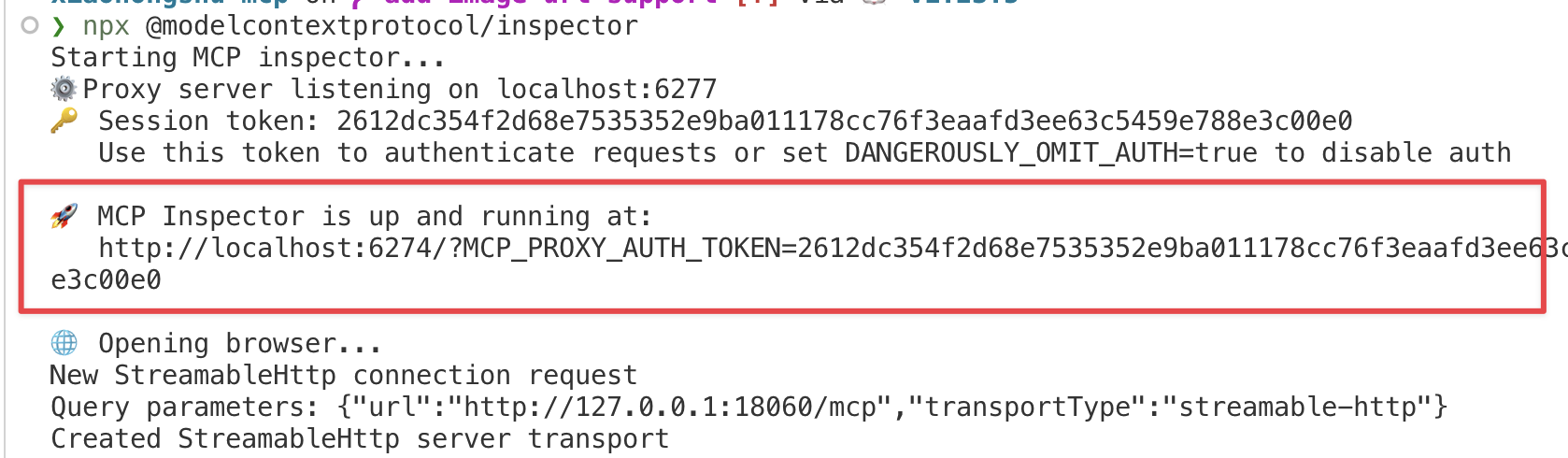
After running, open the red-marked link, configure MCP inspector, enter `http://localhost:18060/mcp`, and click the `Connect` button.
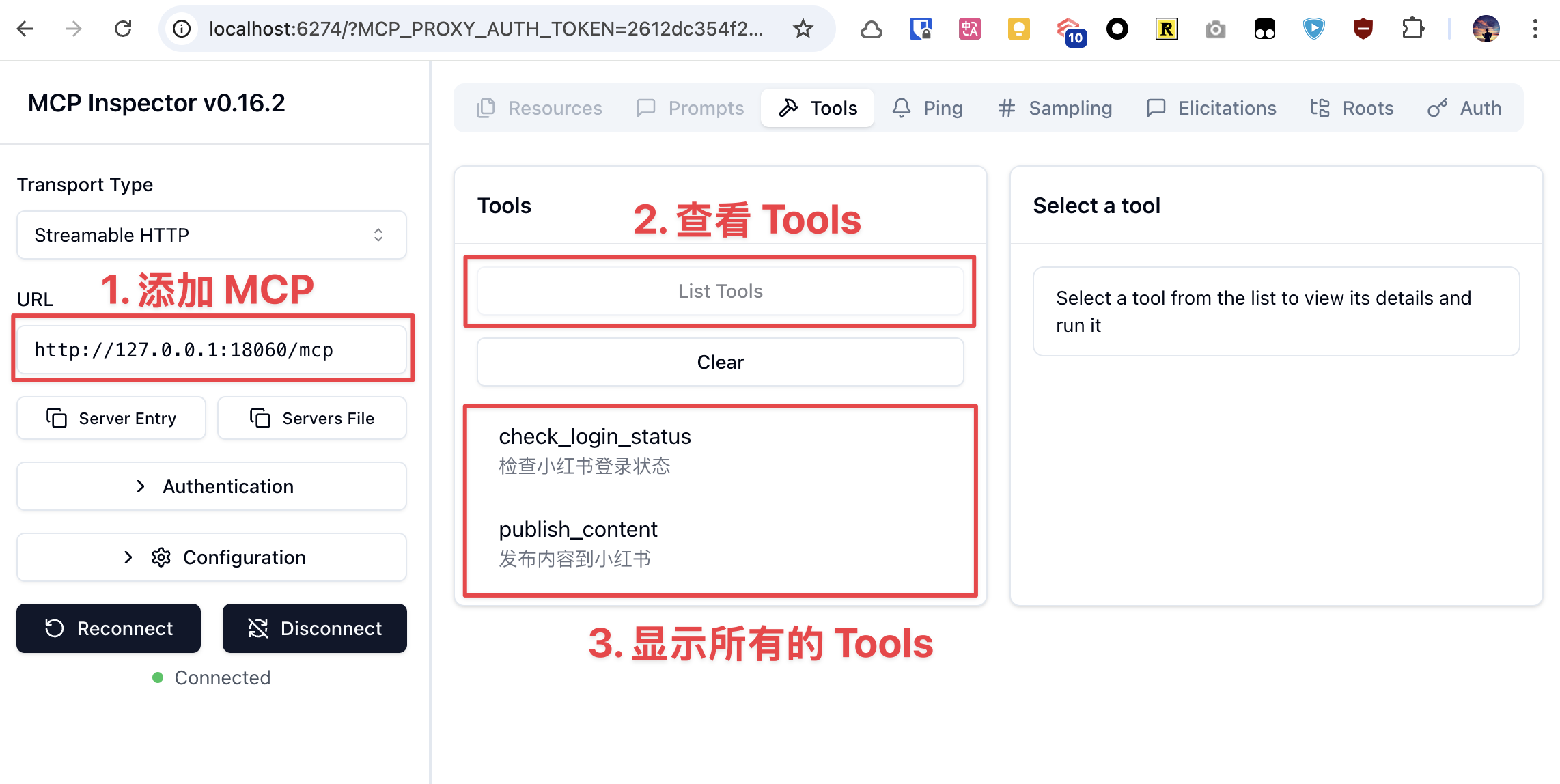
After configuring MCP inspector as above, click the `List Tools` button to view all Tools.
## 1.5. Use MCP for Publishing
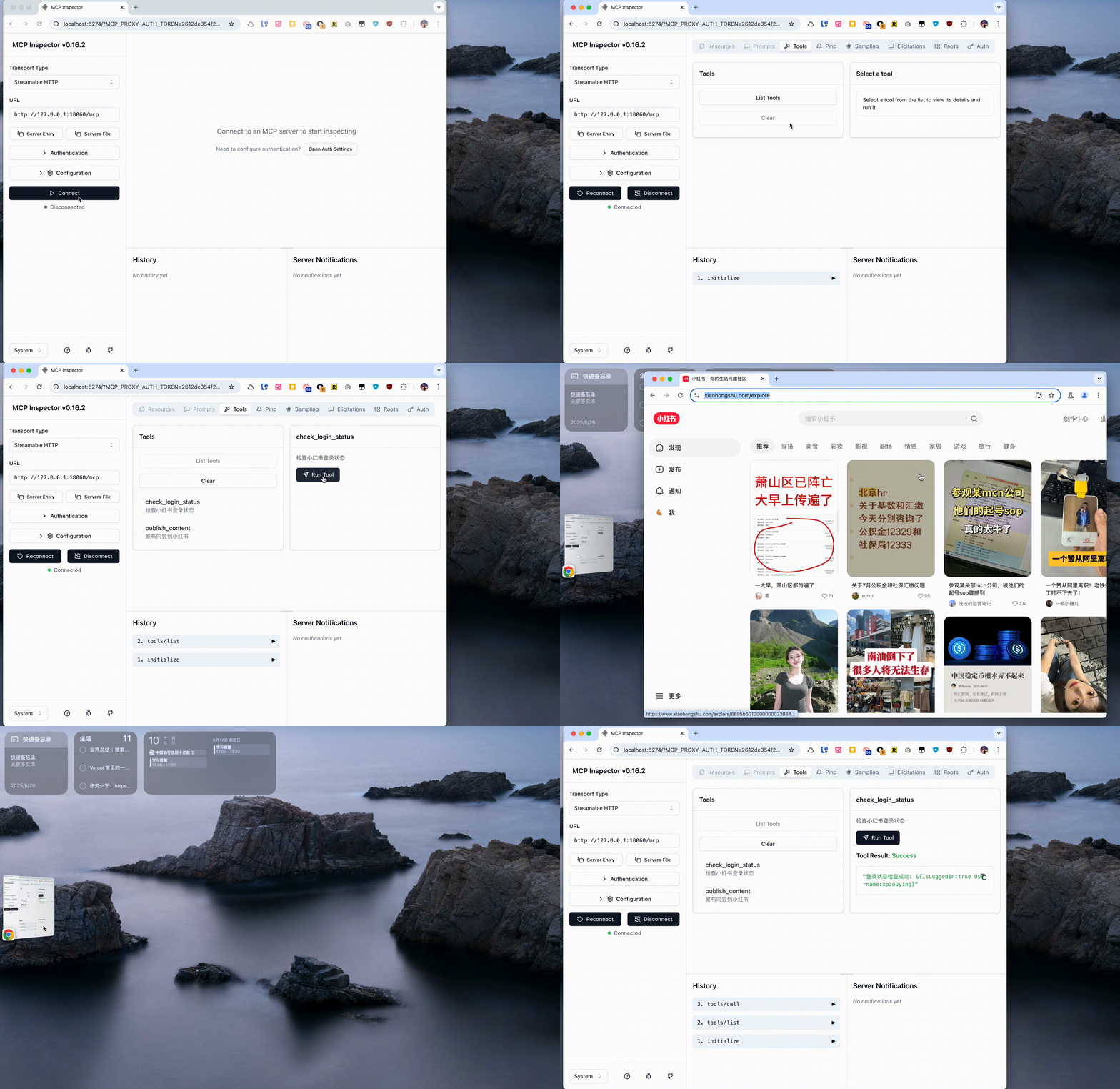
### Check Login Status
### Publish Image-Text
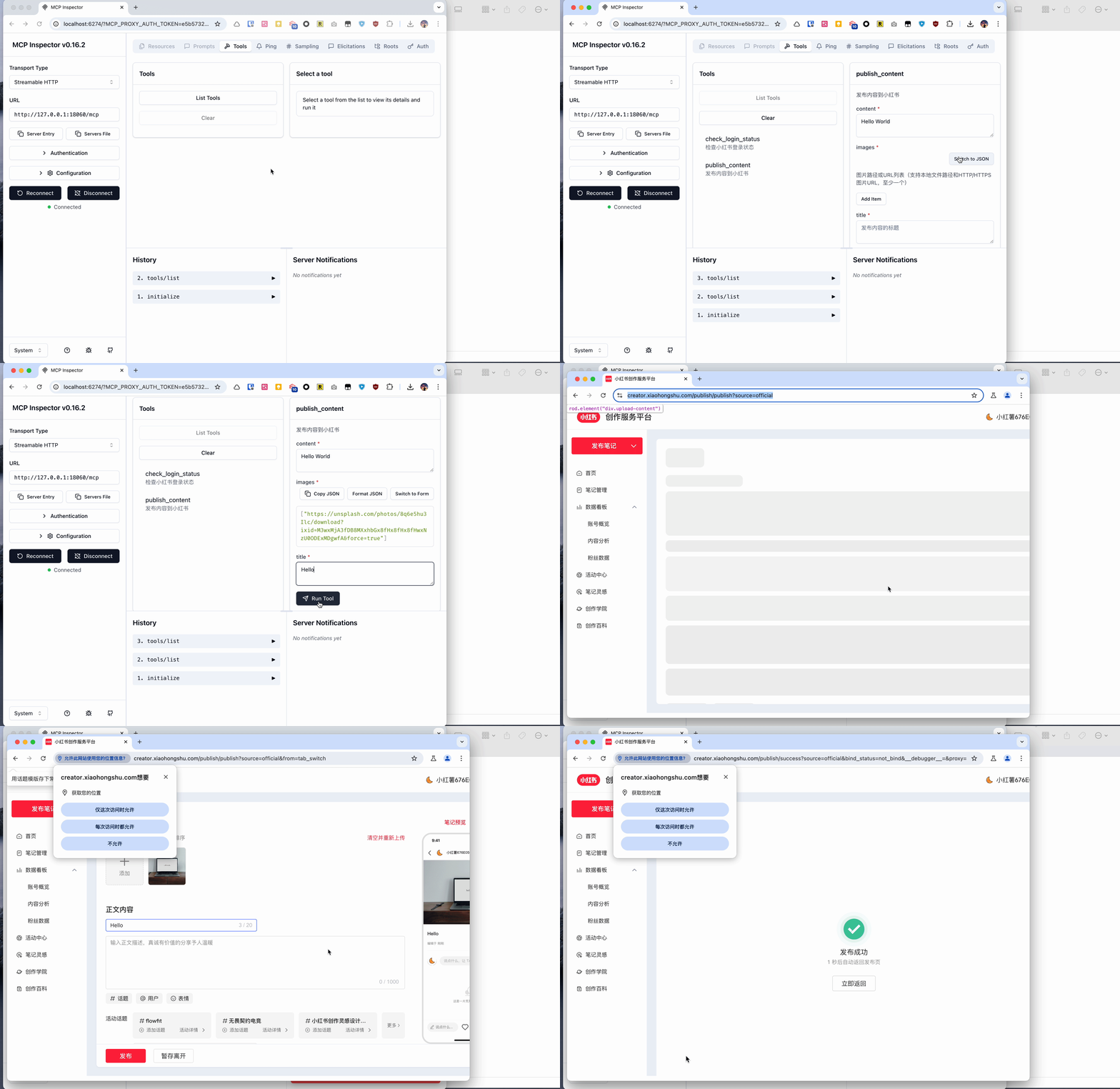
The example uses a random image from https://unsplash.com/ for testing.
### Search Content
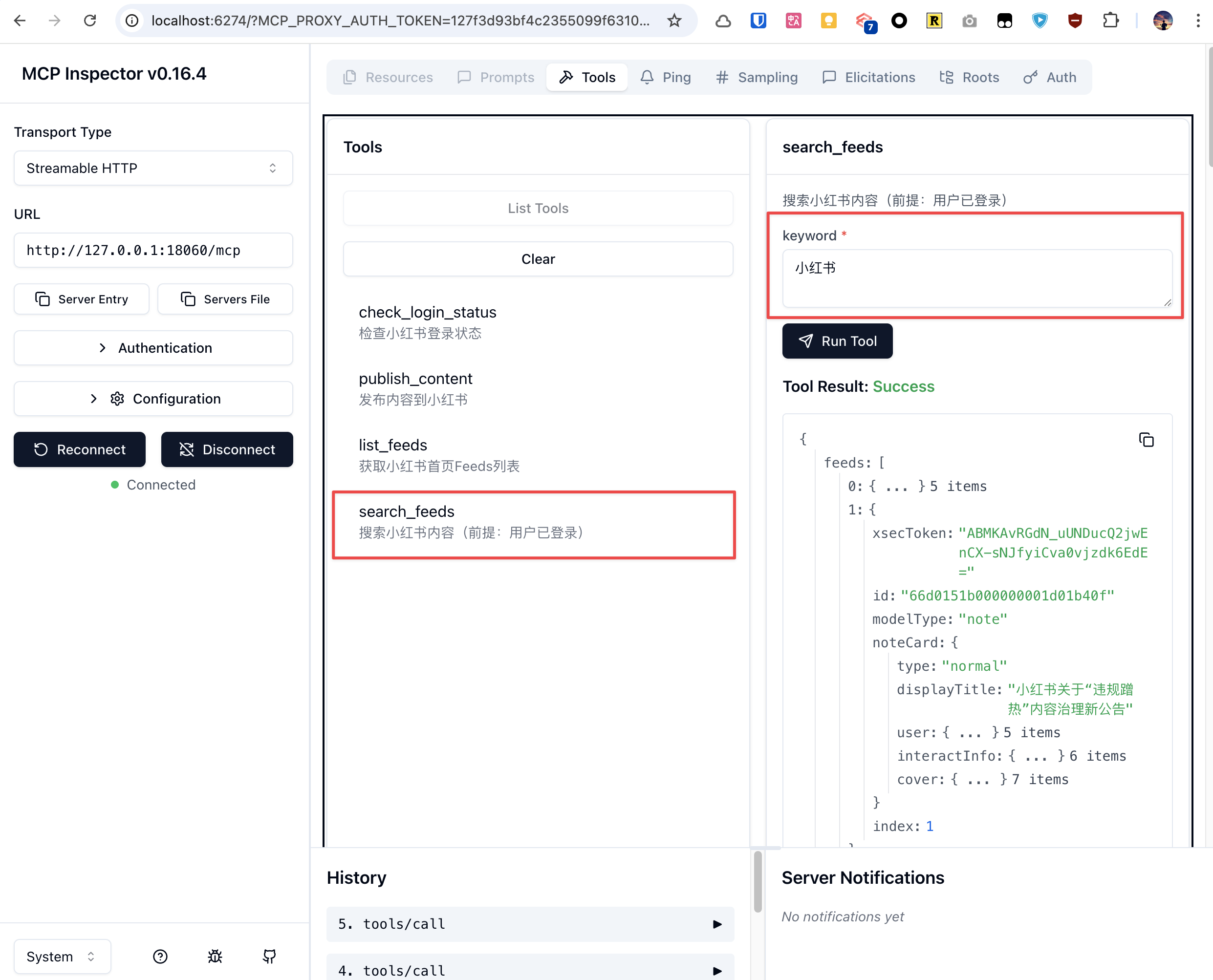
Use search functionality to search RedNote content by keywords:
## 2. MCP Client Integration
This service supports the standard Model Context Protocol (MCP) and can integrate with various AI clients that support MCP.
### 2.1. Quick Start
#### Start MCP Service
```bash
# Start service (default headless mode)
go run .
# Or with interface mode
go run . -headless=false
```
Service will run at: `http://localhost:18060/mcp`
#### Verify Service Status
```bash
# Test MCP connection
curl -X POST http://localhost:18060/mcp \
-H "Content-Type: application/json" \
-d '{"jsonrpc":"2.0","method":"initialize","params":{},"id":1}'
```
#### Claude Code CLI Integration
```bash
# Add HTTP MCP server
claude mcp add --transport http xiaohongshu-mcp http://localhost:18060/mcp
```
### 2.2. Supported Clients
Claude Code CLI
Official command line tool, already shown in the quick start section above:
```bash
# Add HTTP MCP server
claude mcp add --transport http xiaohongshu-mcp http://localhost:18060/mcp
```
Cursor
#### Configuration File Method
Create or edit MCP configuration file:
**Project-level configuration** (recommended):
Create `.cursor/mcp.json` in project root directory:
```json
{
"mcpServers": {
"xiaohongshu-mcp": {
"url": "http://localhost:18060/mcp",
"description": "RedNote content publishing service - MCP Streamable HTTP"
}
}
}
```
**Global configuration**:
Create `~/.cursor/mcp.json` in user directory (same content).
#### Usage Steps
1. Ensure RedNote MCP service is running
2. Save configuration file and restart Cursor
3. In Cursor chat, tools should be automatically available
4. You can view connected MCP tools through "Available Tools" in the chat interface
**Demo**
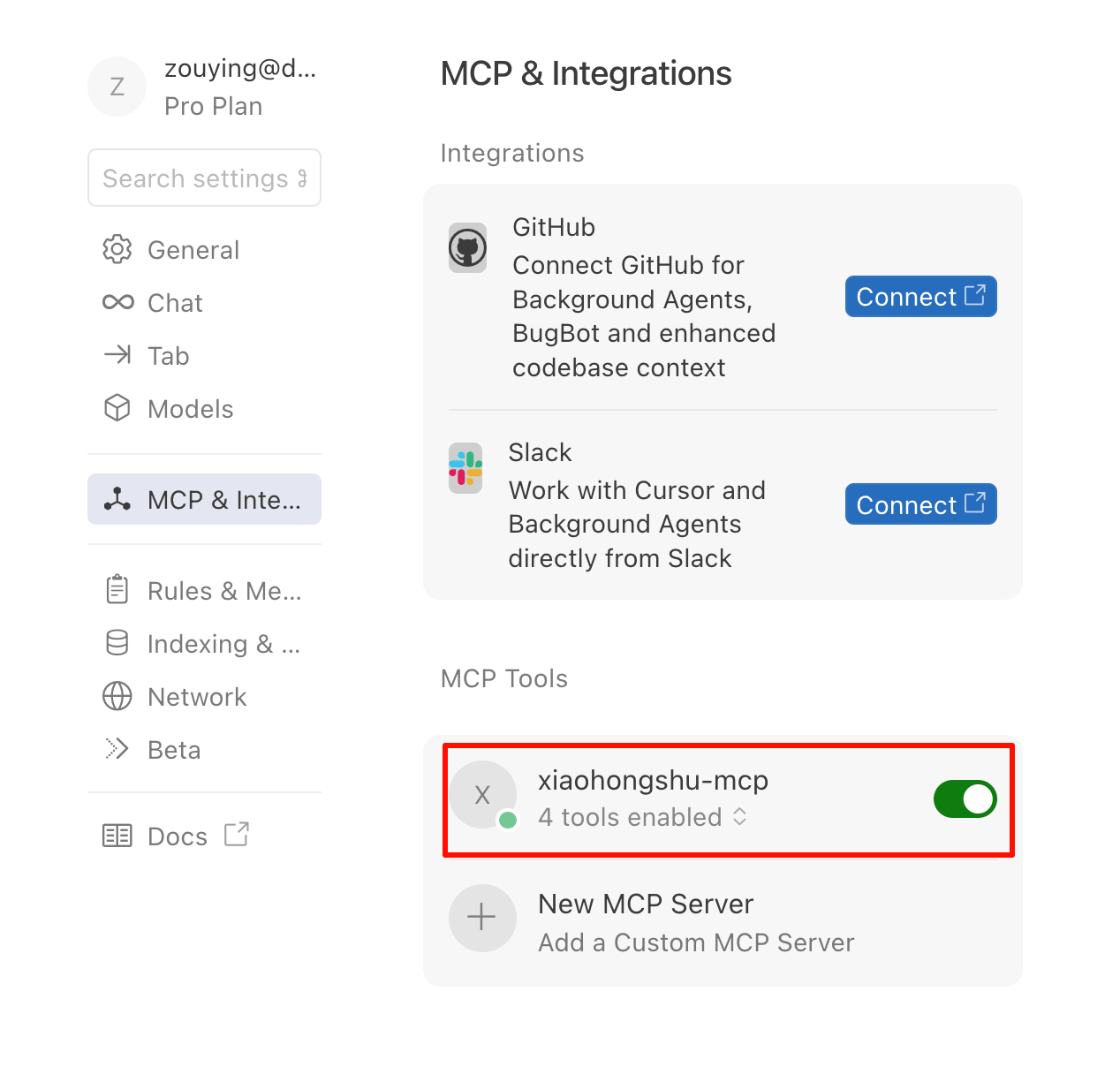
Plugin MCP integration:
Call MCP tools: (using check login status as example)
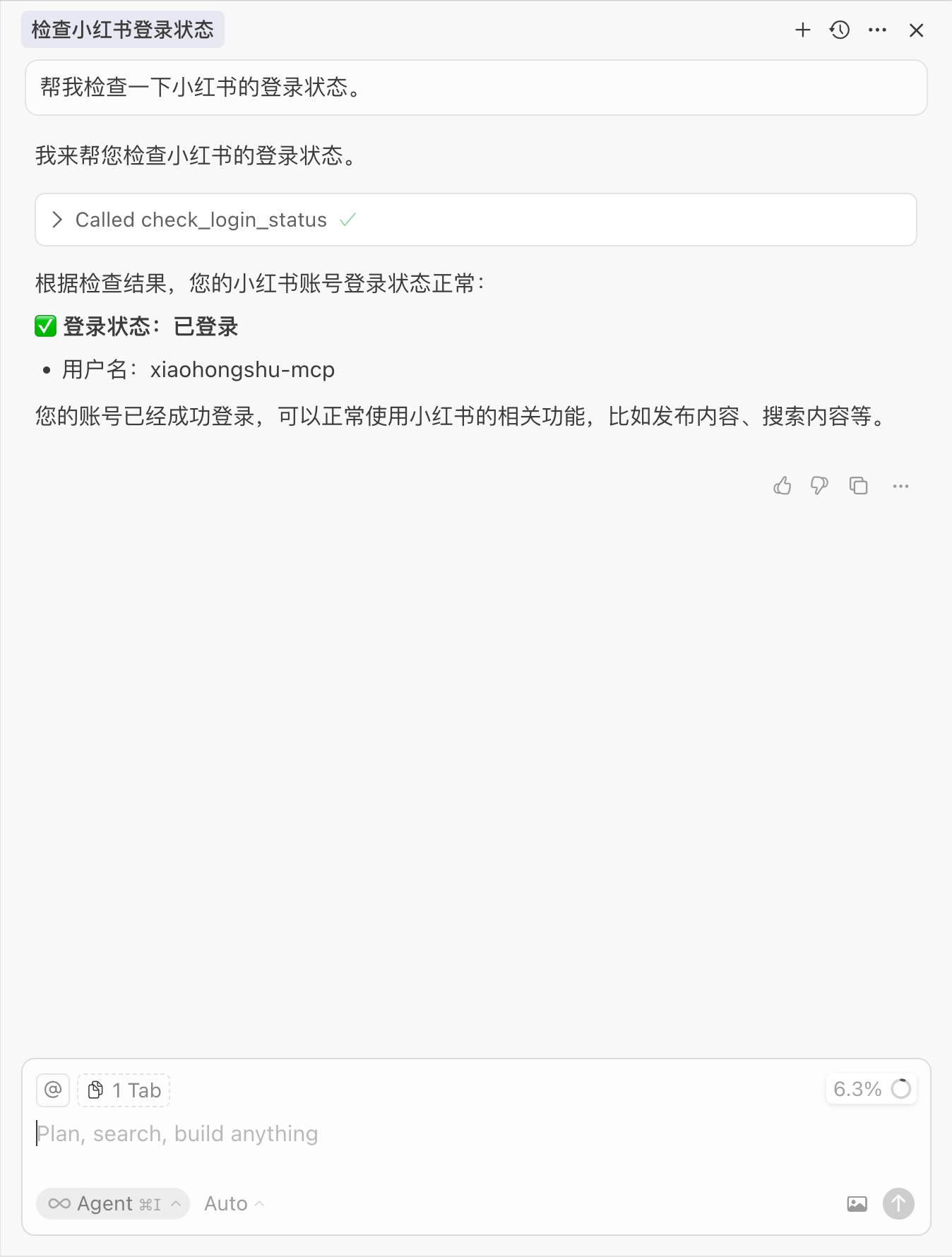
VSCode
#### Method 1: Configure using Command Palette
1. Press `Ctrl/Cmd + Shift + P` to open command palette
2. Run `MCP: Add Server` command
3. Select `HTTP` method.
4. Enter address: `http://localhost:18060/mcp`, or modify to corresponding Server address.
5. Enter MCP name: `xiaohongshu-mcp`.
#### Method 2: Direct Configuration File Edit
**Workspace configuration** (recommended):
Create `.vscode/mcp.json` in project root directory:
```json
{
"servers": {
"xiaohongshu-mcp": {
"url": "http://localhost:18060/mcp",
"type": "http"
}
},
"inputs": []
}
```
**View Configuration**:
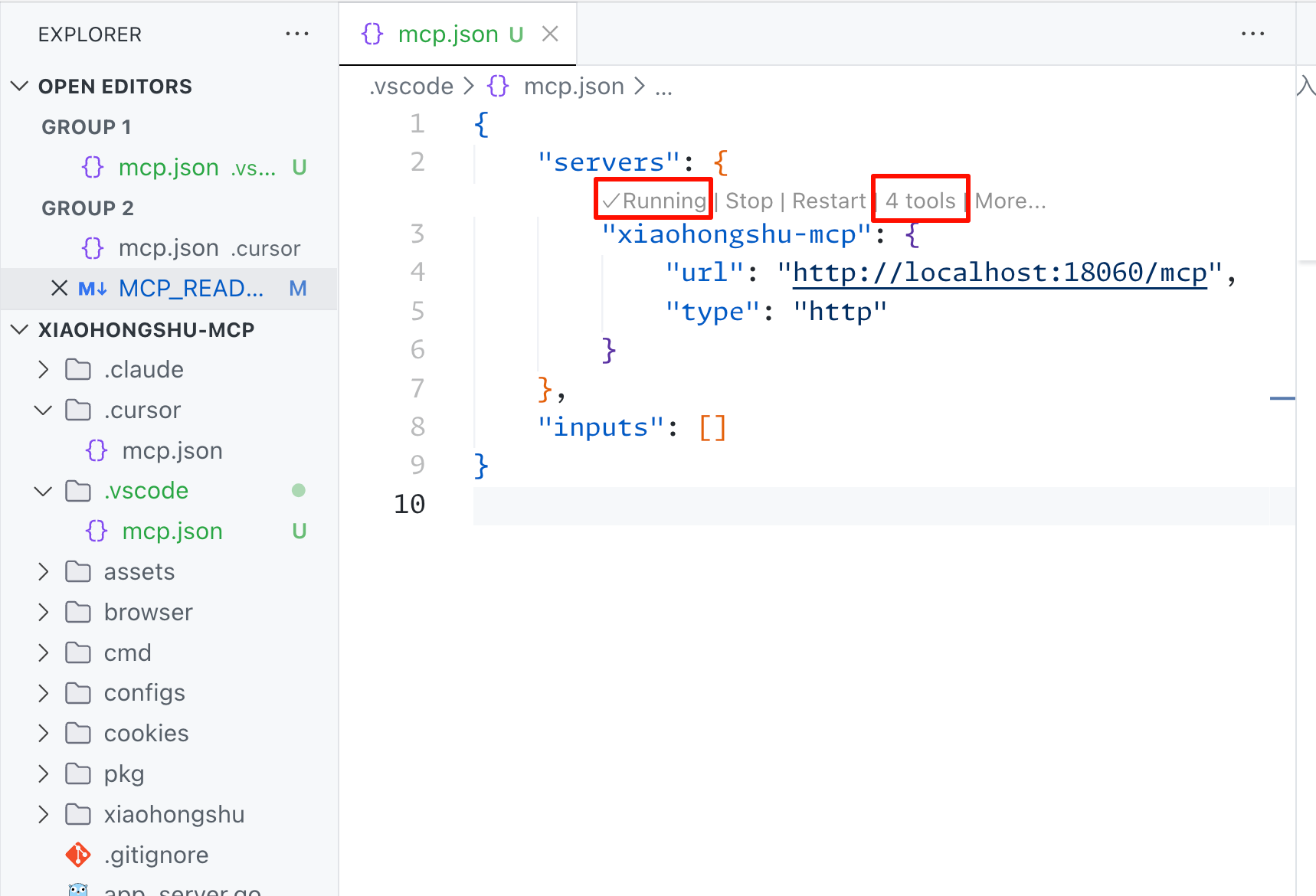
1. Confirm running status.
2. Check if `tools` are correctly detected.
**Demo**
Using search post content as example:
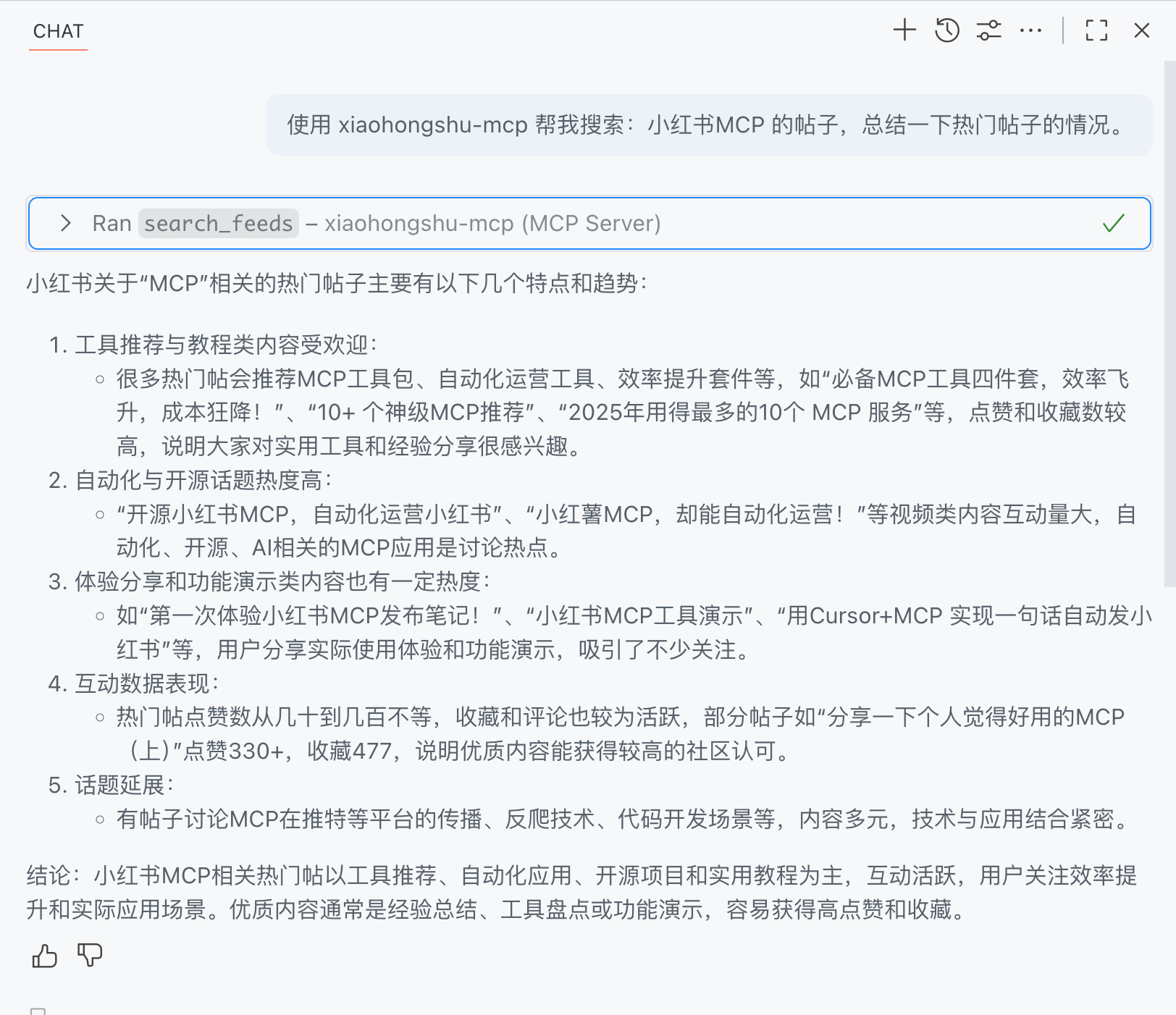
Google Gemini CLI
Configure in `~/.gemini/settings.json` or project directory `.gemini/settings.json`:
```json
{
"mcpServers": {
"xiaohongshu": {
"httpUrl": "http://localhost:18060/mcp",
"timeout": 30000
}
}
}
```
For more information, please refer to [Gemini CLI MCP Documentation](https://google-gemini.github.io/gemini-cli/docs/tools/mcp-server.html)
MCP Inspector
Debug tool for testing MCP connections:
```bash
# Start MCP Inspector
npx @modelcontextprotocol/inspector
# Connect in browser to: http://localhost:18060/mcp
```
Usage steps:
- Use MCP Inspector to test connection
- Test Ping Server functionality to verify connection
- Check if List Tools returns 6 tools
Cline
Cline is a powerful AI programming assistant that supports MCP protocol integration.
#### Configuration Method
Add the following configuration to Cline's MCP settings:
```json
{
"xiaohongshu-mcp": {
"url": "http://localhost:18060/mcp",
"type": "streamableHttp",
"autoApprove": [],
"disabled": false
}
}
```
#### Usage Steps
1. Ensure RedNote MCP service is running (`http://localhost:18060/mcp`)
2. Open MCP settings in Cline
3. Add the above configuration to the MCP server list
4. Save configuration and restart Cline
5. You can directly use RedNote-related features in conversations
#### Configuration Explanation
- `url`: MCP service address
- `type`: Use `streamableHttp` type for better performance
- `autoApprove`: Configurable auto-approve tool list (empty means manual approval)
- `disabled`: Set to `false` to enable this MCP service
#### Usage Examples
After configuration, you can use natural language to operate RedNote directly in Cline:
```
Help me check RedNote login status
```
```
Help me publish a spring-themed image-text post to RedNote, using this image: /path/to/spring.jpg
```
```
Search for content about "food" on RedNote
```
Other HTTP MCP Supporting Clients
Any client supporting HTTP MCP protocol can connect to: `http://localhost:18060/mcp`
Basic configuration template:
```json
{
"name": "xiaohongshu-mcp",
"url": "http://localhost:18060/mcp",
"type": "http"
}
```
### 2.3. Available MCP Tools
After successful connection, you can use the following MCP tools:
- `check_login_status` - Check RedNote login status (no parameters)
- `publish_content` - Publish image-text content to RedNote (required: title, content, images)
- `images`: Supports HTTP links or local absolute paths, local paths recommended
- `publish_with_video` - Publish video content to RedNote (required: title, content, video)
- `video`: Only supports local video file absolute paths
- `list_feeds` - Get RedNote homepage recommendation list (no parameters)
- `search_feeds` - Search RedNote content (required: keyword)
- `get_feed_detail` - Get post details (required: feed_id, xsec_token)
- `post_comment_to_feed` - Post comments to RedNote posts (required: feed_id, xsec_token, content)
- `user_profile` - Get user profile information (required: user_id, xsec_token)
### 2.4. Usage Examples
Using Claude Code to publish content to RedNote:
**Example 1: Using HTTP Image Links**
```
Help me write a post to publish on RedNote,
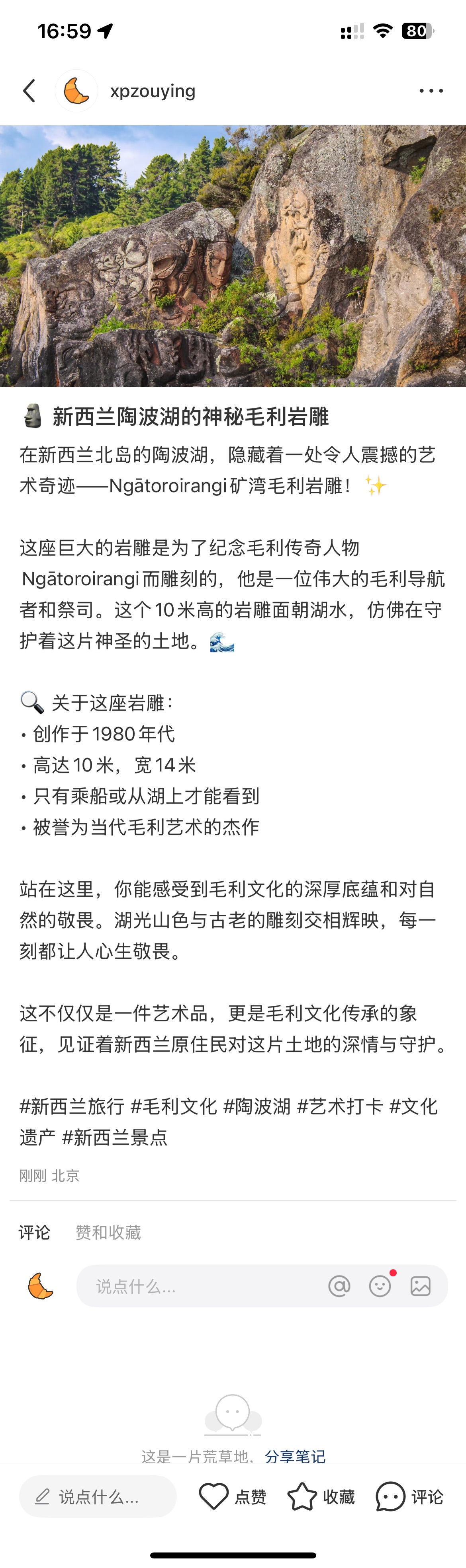
with image: https://cn.bing.com/th?id=OHR.MaoriRock_EN-US6499689741_UHD.jpg&w=3840
The image is: "Maori rock carving at Ngātoroirangi Mine Bay, Lake Taupo, New Zealand (© Joppi/Getty Images)"
Use xiaohongshu-mcp for publishing.
```
**Example 2: Using Local Image Paths (Recommended)**
```
Help me write a post about spring to publish on RedNote,
using these local images:
- /Users/username/Pictures/spring_flowers.jpg
- /Users/username/Pictures/cherry_blossom.jpg
Use xiaohongshu-mcp for publishing.
```
**Example 3: Publishing Video Content**
```
Help me write a video post about cooking tutorials to publish on RedNote,
using this local video file:
- /Users/username/Videos/cooking_tutorial.mp4
Use xiaohongshu-mcp's video publishing feature.
```
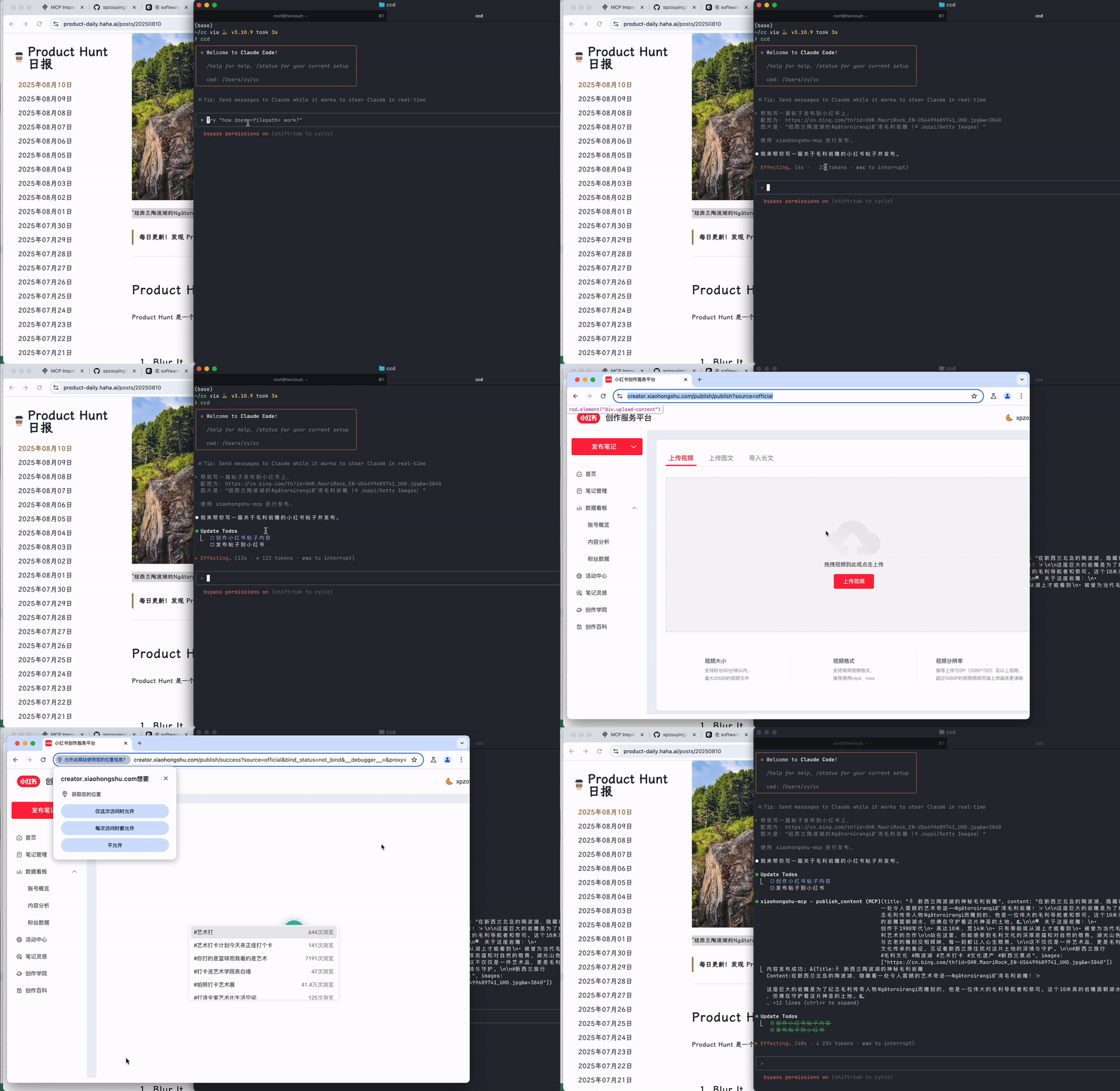
**Publishing Result:**
 ## 3. 🌟 Community Showcases
> 💡 **Highly Recommended**: These are real-world use cases from community contributors, featuring detailed configuration steps and practical experiences!
### 📚 Complete Tutorial List
1. **[n8n Complete Integration Tutorial](./examples/n8n/README.md)** - Workflow automation platform integration
2. **[Cherry Studio Complete Configuration Tutorial](./examples/cherrystudio/README.md)** - Perfect AI client integration
3. **[Claude Code + Kimi K2 Integration Tutorial](./examples/claude-code/claude-code-kimi-k2.md)** - If Claude Code's barrier is too high, then integrate with Kimi domestic LLM!
4. **[AnythingLLM Complete Guide](./examples/anythingLLM/readme.md)** - AnythingLLM is an all-in-one multimodal AI client that supports workflow definition, multiple LLMs, and plugin extensions.
> 🎯 **Tip**: Click the links above to view detailed step-by-step tutorials for quick setup of various integration solutions!
>
> 📢 **Contributions Welcome**: If you have new integration cases, feel free to submit a PR to share with the community!
## 4. RedNote MCP Community Group
**Important: Before asking questions in the group, please make sure to read the README documentation thoroughly and check Issues first.**
| 【Feishu Group 3】: Scan to join | 【WeChat Group 10】: Scan to join |
| -------------------------------------------------------------------------------------------------------------------------- | --------------------------------------------------------------------------------------------------------------------------- |
|
## 3. 🌟 Community Showcases
> 💡 **Highly Recommended**: These are real-world use cases from community contributors, featuring detailed configuration steps and practical experiences!
### 📚 Complete Tutorial List
1. **[n8n Complete Integration Tutorial](./examples/n8n/README.md)** - Workflow automation platform integration
2. **[Cherry Studio Complete Configuration Tutorial](./examples/cherrystudio/README.md)** - Perfect AI client integration
3. **[Claude Code + Kimi K2 Integration Tutorial](./examples/claude-code/claude-code-kimi-k2.md)** - If Claude Code's barrier is too high, then integrate with Kimi domestic LLM!
4. **[AnythingLLM Complete Guide](./examples/anythingLLM/readme.md)** - AnythingLLM is an all-in-one multimodal AI client that supports workflow definition, multiple LLMs, and plugin extensions.
> 🎯 **Tip**: Click the links above to view detailed step-by-step tutorials for quick setup of various integration solutions!
>
> 📢 **Contributions Welcome**: If you have new integration cases, feel free to submit a PR to share with the community!
## 4. RedNote MCP Community Group
**Important: Before asking questions in the group, please make sure to read the README documentation thoroughly and check Issues first.**
| 【Feishu Group 3】: Scan to join | 【WeChat Group 10】: Scan to join |
| -------------------------------------------------------------------------------------------------------------------------- | --------------------------------------------------------------------------------------------------------------------------- |
|  |
|  |
## 🙏 Thanks to Contributors ✨
Thanks to all friends who have contributed to this project! (In no particular order)
### ✨ Special Thanks
| Contributors |
| --------------------------------------------------------------------------------------------------------------------------- |
| [
|
## 🙏 Thanks to Contributors ✨
Thanks to all friends who have contributed to this project! (In no particular order)
### ✨ Special Thanks
| Contributors |
| --------------------------------------------------------------------------------------------------------------------------- |
| [
@wanpengxie](https://github.com/wanpengxie) |
This project follows the [all-contributors](https://github.com/all-contributors/all-contributors) specification. Contributions of any kind welcome!


